Profile, Settings & History
Manage your personal data, track body weight, view workout history, and customize app settings.
The Profile Page is where you manage your personal data, workout history, and app settings.
Weight Tracking
Track your body weight to enable accurate calculations for bodyweight exercises.
- Log Weight: Enter your current body weight.
- History: View a chart of your weight fluctuations over time.
- Integration: Your most recent weight is automatically used for Bodyweight Exercises (e.g., Pull-ups, Dips) to calculate total load accurately.
Best Practices:
- Weigh yourself at the same time daily (morning recommended)
- Use the same scale for consistency
- Don’t stress about daily fluctuations—the trend matters most
Workout History
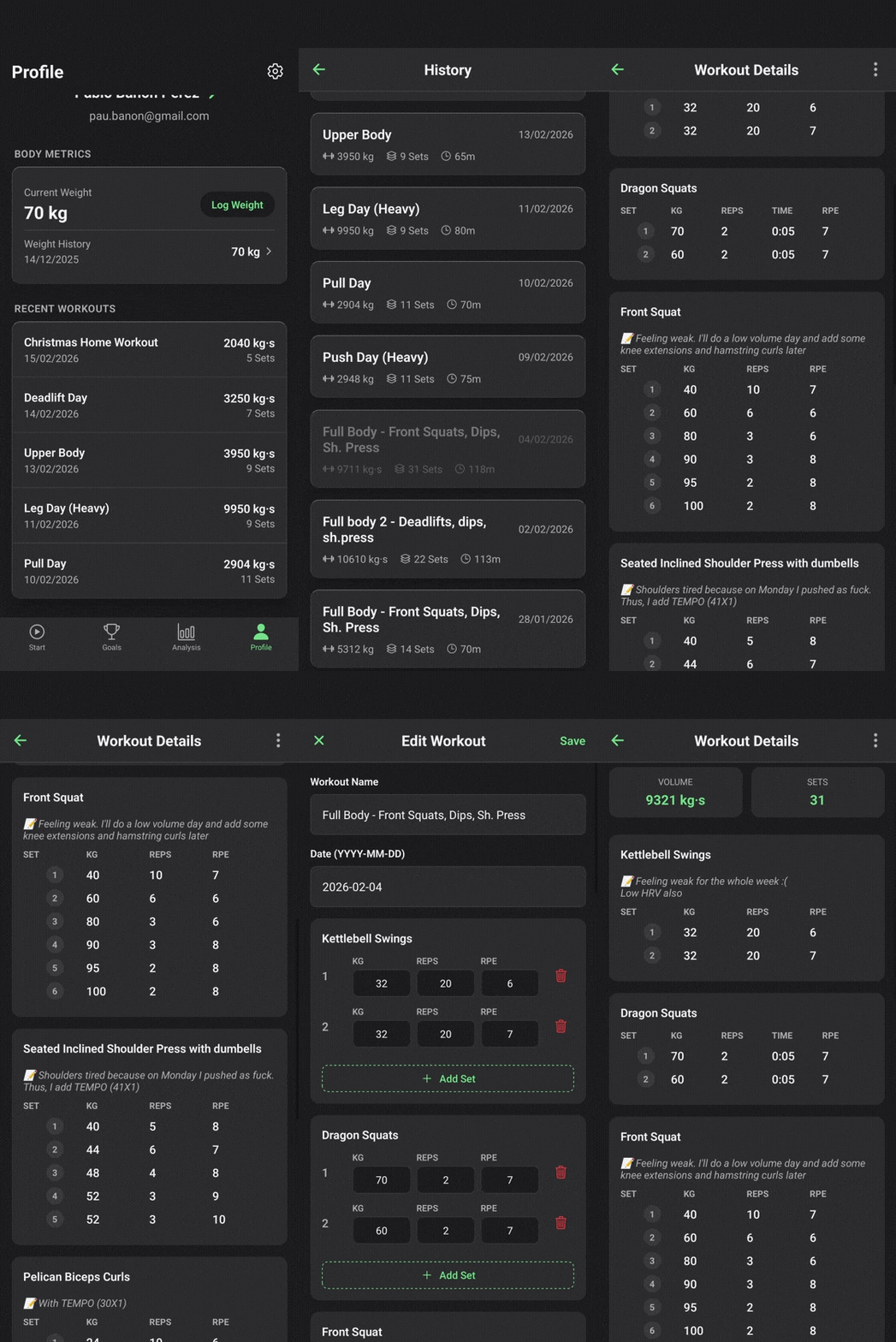
Provides a complete log of your training journey.
- Recent Workouts: Quickly access your last 5 sessions.
- Full History: Expand to see every workout ever logged.
- Edit Workouts: You can tap any past workout to:
- Modify sets, reps, or load.
- Change RPE values.
- Add or edit notes.
- Fix mistakes (e.g., checking a set you didn’t do).
Settings
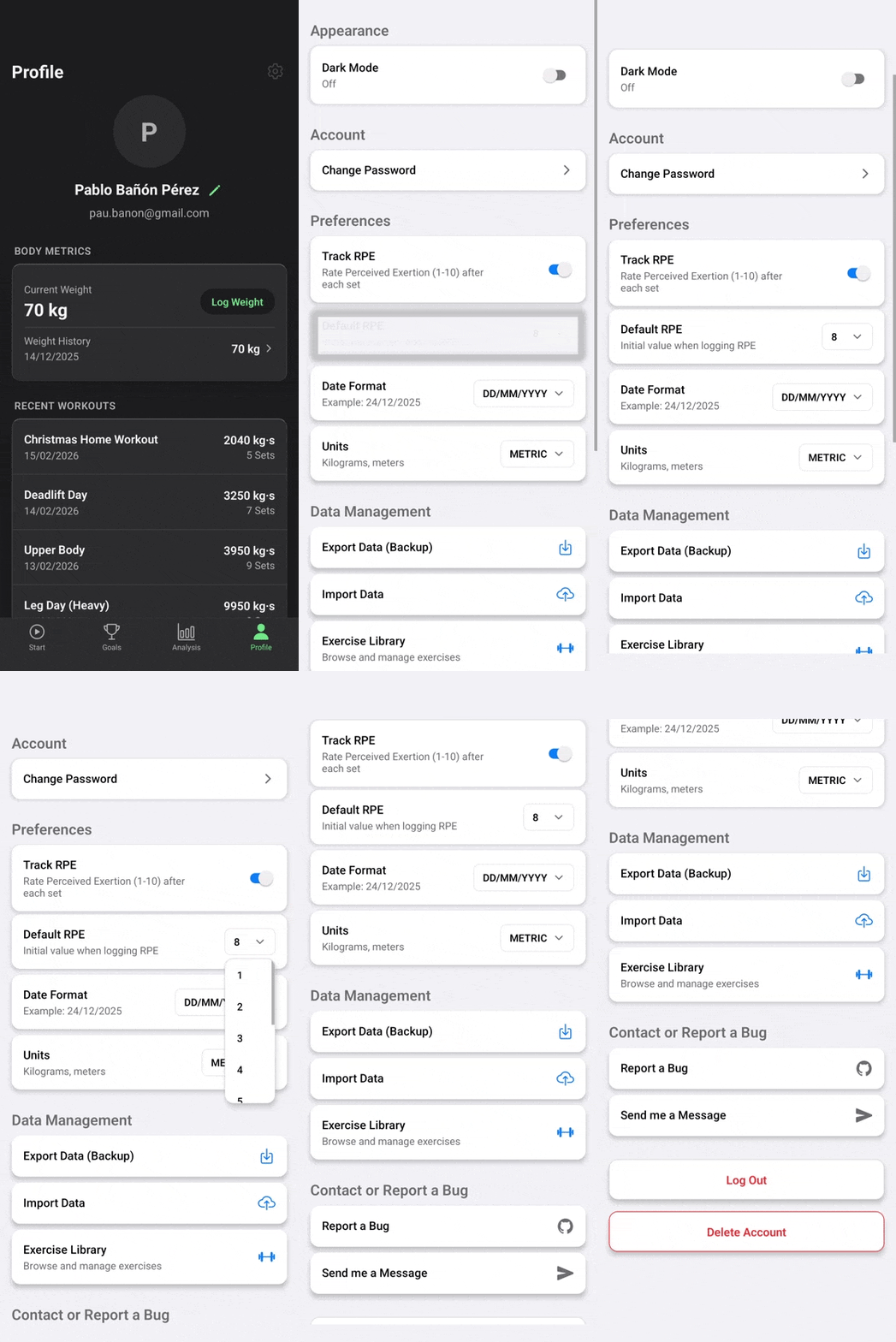
Customize the app to fit your preferences.
General
- Theme: Toggle between Dark Mode and Light Mode.
- Units: Choose your preferred unit system (Metric/Imperial).
- Date Format: Select how dates are displayed.
Workout Tracking
- RPE Toggle: Enable or disable the prompt to rate perceived effort after each set.
- Recommendation: Keep this ON. Without RPE data, the app cannot generate Hypertrophy or Strength analysis reports.
- Default RPE: Set a default value to speed up entry.
Data Management
Export Data
Download your complete workout history for backup or external analysis.
- Go to Profile → Settings → Data Management
- Tap Export Data
- Choose format: CSV (spreadsheet) or JSON (raw data)
- File downloads to your device
What’s included:
- All workouts with dates and duration
- Every set logged (exercise, load, reps, RPE)
- Your goals and progress history
- Body weight entries
Tip: Import the CSV into Excel or Google Sheets for custom analysis.
Import Data
Restore data from a previous backup or migrate from another device.
- Go to Profile → Settings → Data Management
- Tap Import Data
- Select your backup file (CSV or JSON format)
- Review the import preview and confirm
Delete Account
Permanently remove your account and all associated data.
- Go to Profile → Settings → Data Management
- Tap Delete Account
- Enter your password to confirm
- Tap Permanently Delete
Important:
- This action is irreversible
- All workout history, goals, and routines will be deleted
- Your data is removed from our servers within 30 days
- Exercises you created in the public library remain (anonymized)
Need a break instead? Consider logging out rather than deleting your account.